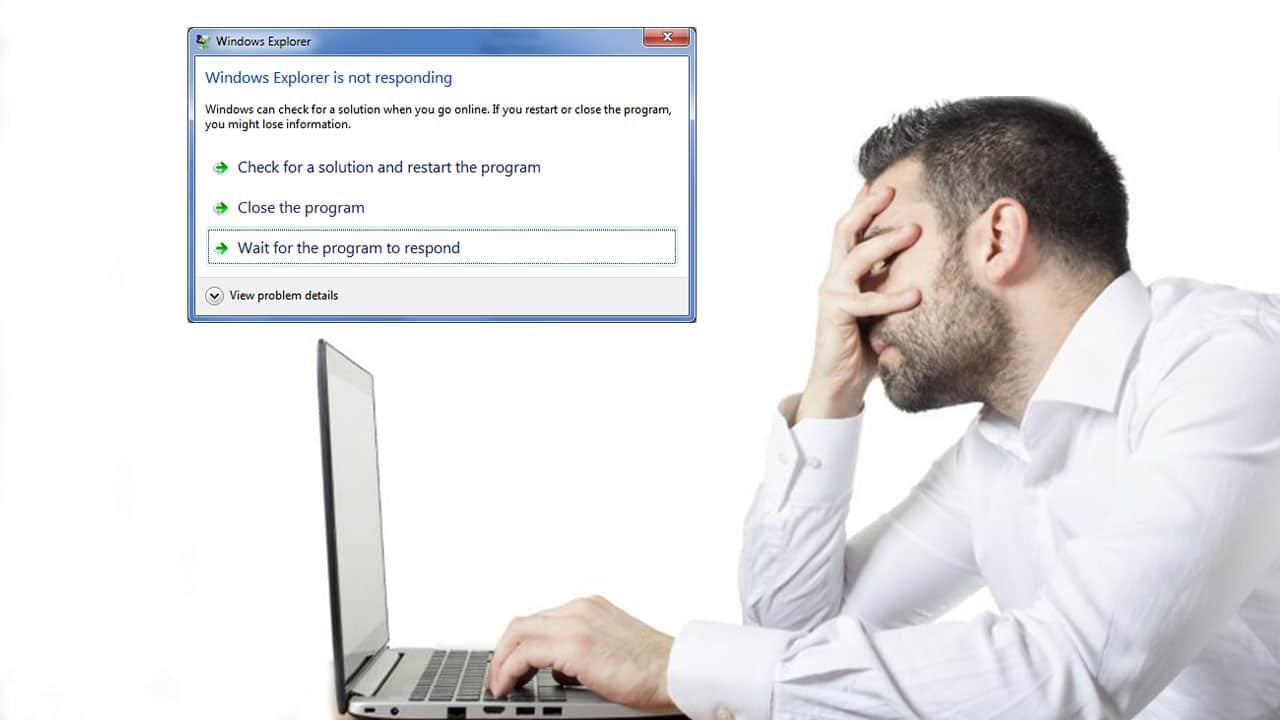
A slow computer can make life much more difficult than it has to be, whether you’re using it for business or for entertainment. When you can hardly open a window, load a website, or even start up your system, slow performance speed can make your computer worthless.
Spending a few minutes working through some tried-and-true troubleshooting procedures can make life easier if you’ve recently been experiencing issues.
The following steps will help your PC perform smoothly:
Delete unnecessary images or files.
Sifting through the files and images on your computer might be overwhelming, but by deleting the ones you no longer use, you can speed up the process and prevent your computer from halting or crashing. Clearing out old images, erasing files on desktops, or moving huge files to online backup, are small and sensible methods to help your PC run quicker.
If the process feels burdensome, break it down and take out 30 minutes each day to delete everything unnecessary. You may quickly identify any temporary files or apps sapping your PC’s storage.
Get an external SSD/HDD
If you take a lot of pictures, you might even want to think about external storage, like Portable SSD. It is ideal for safely saving a large number of your necessary high-resolution videos and photographs rapidly.
Empty Recycle Bin
Unwanted files will remain in the recycle bin after you have erased them because they are still there. You should routinely empty your recycle bin because it can be taking up space on your computer that could be better used elsewhere.
The more capacity you have on your hard drive, the better your PC will perform. Your computer will also accumulate temporary files, but you may easily get rid of them. The steps are as follows for Windows 10 and 11:
- From the Start menu, select Settings
- Go to Storage
- Open ‘This PC’ and select the hard drive
- Click on Temporary Files
- Under Recycle Bin, click Empty Recycle Bin
- In Temporary Files, click Delete Temporary Files
- Under Downloads, select View Downloads and delete unwanted downloads
Get more RAM
You might need to add more RAM if your computer is displaying error warnings and files are taking a long time to load. Although this is distinct from the total amount of storage on your hard drive, adding more RAM will improve your computer’s multitasking abilities.
Adding RAM can help if you frequently run many programmes at once (opens in a new tab). Installing at least 16GB and 32GB RAM from reputable manufacturers is a good idea. This will help in quicker startups, fewer delays, and smooth app switching.
Install an anti-virus
Malware infections can cause a computer to run slower than usual. Additionally, you can have unexpected pop-up warnings, a noisy computer, and erratically starting apps. However, the malware won’t always be so obvious.
According to Microsoft, running anti-virus and anti-malware software and keeping it updated is the best way to deal with infections and harmful software. For instance, Windows 11 includes Windows Security, which will check your computer for viruses and other harmful software.
Defragment disk
In contrast to a solid state drive (SSD), a hard disc drive (HDD) stores data in discrete chunks across the disc. As a result of use and time, relevant data can become dispersed across the entire disc. When you start a software or app, the system then needs more time to locate each piece of data and put it back together for use. Your HDD’s defragmentation can expedite this procedure.
Click the Windows button or Start menu, choose Control Panel, then System and Security to defragment your hard drive. Defragment your hard drive by selecting it under Administrative Tools.
Since SSDs use a completely different technology than HDDs, they do not require defragmentation.
Disable programs that auto-start
On your computer, certain apps are configured to launch automatically when Windows does. Even though it’s not always simple to know which ones are active, having too many operate concurrently can cause delays.
In order to prevent start-up apps from starting automatically, you must manually change the settings on your computer.
Disable constant anti-virus checks
You may have observed your system performing slowly when Task Manager was open, and that your antivirus programme frequently occupies a position towards the top of the list. While continually scanning your computer for viruses and malware, antivirus software can cause your system to sluggishly operate.
Read more: 12 important things you need to know before buying a used iPhone
Schedule your antivirus programme to run at times when you’re not likely to be using your computer, such as overnight or during your lunch break, rather than letting it scan whenever it pleases. Depending on the programme you use, you can modify the scan schedule.
No matter what model or generation of PC you are using, by following these instructions you can significantly improve your PC’s performance. Unless you’re still on a Core 2 duo.