Tag: desktop

  • Xiaomi is gearing up to launch its first-ever Windows PC with gaming GPU

    Xiaomi is gearing up to launch its first-ever Windows PC with gaming GPU

    Xiaomi seems to be gearing up to enter yet another technological market. The Chinese juggernaut is most likely known for its smartphones, and some of you may be familiar with their line of laptops, but it now appears that at least a few Windows PCs are on the way.

    According to gsmarena, the two designs were reportedly planned to be unveiled at the Xiaomi event on December 1. Due to Jiang Zemin’s passing as the former general secretary of the Chinese Communist Party, the event has been postponed. It appears that two PC designs were still showed off to select folks a little early while we wait for a new date to be set.

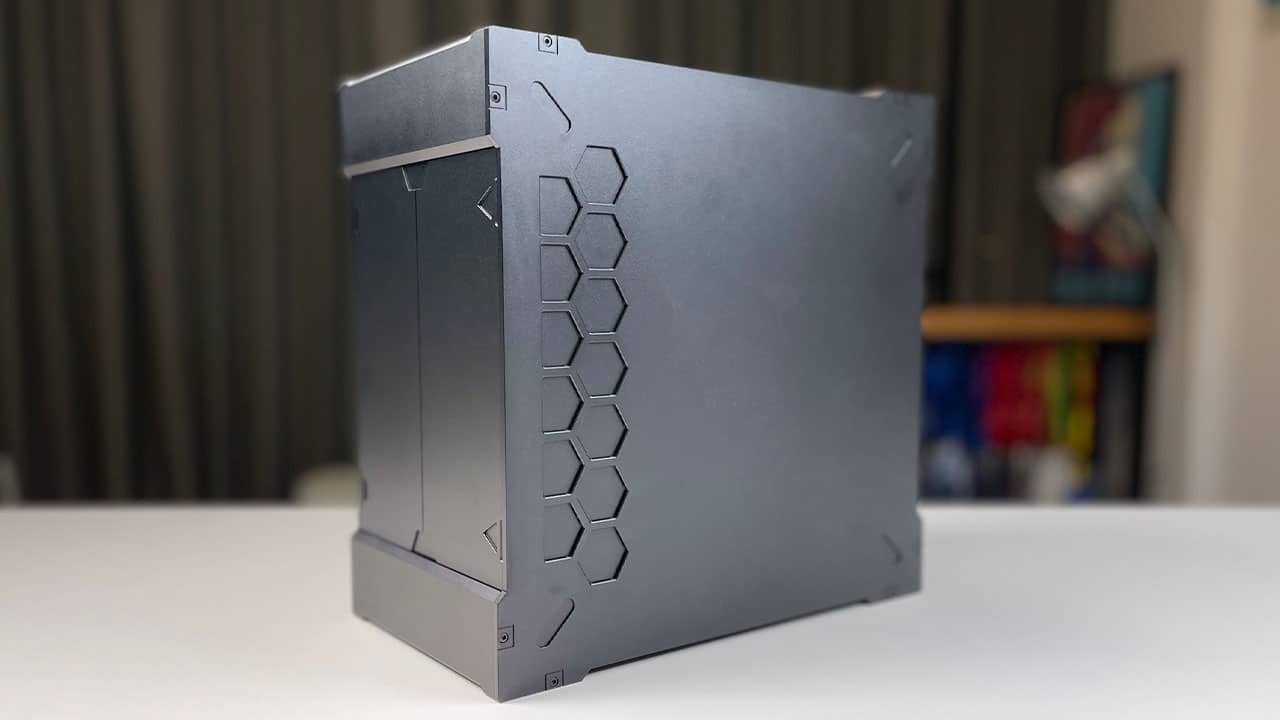
    Let’s begin with the stranger of the two. The Xiaomi Host Mini PC appears to be a small form factor (SFF) prototype that has been left in its most basic form. That is to say, the system in the image only has a 100W XM22AL5X PSU installed. The remainder of the hardware that will be included in the box hasn’t been revealed because it’s unlikely that Xiaomi will sell it as a barebones kit.

    We can infer from the images that a Mini-ITX motherboard will support low-profile, half-height, up to dual-slot dedicated GPUs. Although we are unsure of how a dedicated GPU will function with the 100W power supply, it’s possible that it isn’t the final or only component in the setup.

    The windows key and “M” key combination are illustrated on a bespoke plate that is attached to the back of the case. Perhaps Xiaomi intends to change the Windows key combination that generally dismisses all windows and replace it with a unique function. The mechanical switch that is mounted on the back of the Host Mini PC is another intriguing feature. Even though neither of us is certain what it does, the leaked Weibo images do show an accessory package that includes a keycap for the button in question, indicating that it is probably functional.

    Now let’s go on to the other system, about which we know a lot more. It is a small PC with a form factor similar to the Mac Mini or Intel NUC. It will reportedly be powered by a 45W MD Ryzen 7 6800H APU with a Radeon 680M RDNA2 iGPU, 16GB of memory, and a 512GB SSD.
  • 50 keyboard shortcuts every Windows user should know

    50 keyboard shortcuts every Windows user should know

    Keyboard shortcuts can help you stay focused, lessen repeated effort, and greatly boost your productivity. For instance, you may select text and use the shortcut Ctrl+C to copy it. The shortcut is quicker than lifting your hands off the keyboard, using the mouse to highlight, right-clicking, choosing copy, and then putting them back on the keyboard.

    There are several keyboard shortcuts offered in Windows, but you do not need to master them all. Just the ones that will make your life simpler and increase productivity should be kept in mind.

    These are the major keyboard shortcuts that every Windows user needs to be familiar with:

    Keyboard shortcut Action
    Ctrl + A Select all content.
    Ctrl + C (or Ctrl + Insert) Copy selected items to clipboard.
    Ctrl + X Cut selected items to clipboard.
    Ctrl + V (or Shift + Insert) Paste content from clipboard.
    Ctrl + Z Undo an action, including undelete files (limited).
    Ctrl + Y Redo an action.
    Ctrl + Shift + N Create new folder on desktop or File Explorer.
    Alt + F4 Close active window. (If no active window is present, a shutdown box appears.)
    Ctrl + D (Del) Delete selected item to the Recycle Bin.
    Shift + Delete Delete the selected item permanently, skipping Recycle Bin.
    F2 Rename selected item.
    Esc Close current task.
    Alt + Tab Switch between open apps.
    PrtScn Take a screenshot and stores it in the clipboard.
    Windows key + I Open Settings app.
    Windows key + E Open File Explorer.
    Windows key + A Open Action center.
    Windows key + D Display and hide the desktop.
    Windows key + L Lock device.
    Windows key + V Open Clipboard bin.
    Windows key + Period (.) or Semicolon (;) Open emoji panel.
    Windows key + PrtScn Capture a full screenshot in the “Screenshots” folder.
    Windows key + Shift + S Capture part of the screen with Snip & Sketch.
    Windows key + Left arrow key Snap app or window left.
    Windows key + Right arrow key Snap app or window right.

    Desktop shortcuts

    On Windows, you can use these keyboard shortcuts to open, close, navigate, and perform tasks more quickly throughout the desktop experience, including the Start menu, Taskbar, Settings, and more.

    Keyboard shortcut Action
    Windows key (or Ctrl + Esc) Open Start menu.
    Ctrl + Arrow keys Change Start menu size.
    Ctrl + Shift + Esc Open Task Manager.
    Ctrl + Shift Switch keyboard layout.
    Alt + F4 Close active window. (If no active window is present, a shutdown box appears.)
    Ctrl + F5 (or Ctrl + R) Refresh current window.
    Ctrl + Alt + Tab View open apps.
    Ctrl + Arrow keys (to select) + Spacebar Select multiple items on desktop or File Explorer.
    Alt + Underlined letter Runs command for the underlined letter in apps.
    Alt + Tab Switch between open apps while pressing Tab multiple times.
    Alt + Left arrow key Go back.
    Alt + Right arrow key Go forward.
    Alt + Page Up Move up one screen.
    Alt + Page Down Move down one screen.
    Alt + Esc Cycle through open windows.
    Alt + Spacebar Open context menu for the active window.
    Alt + F8 Reveals typed password in Sign-in screen.
    Shift + Click app button Open another instance of an app from the Taskbar.
    Ctrl + Shift + Click app button Run app as administrator from the Taskbar.
    Shift + Right-click app button Show window menu for the app from the Taskbar.
    Ctrl + Click a grouped app button Cycle through windows in the group from the Taskbar.
    Shift + Right-click grouped app button Show window menu for the group from the Taskbar.
    Ctrl + Left arrow key Move the cursor to the beginning of the previous word.
    Ctrl + Right arrow key Move the cursor to the beginning of the next word.
    Ctrl + Up arrow key Move the cursor to the beginning of the previous paragraph
    Ctrl + Down arrow key Move the cursor to the beginning of the next paragraph.
    Ctrl + Shift + Arrow key Select block of text.
    Ctrl + Spacebar Enable or disable Chinese IME.
    Shift + F10 Open context menu for selected item.
    F10 Enable app menu bar.
    Shift + Arrow keys Select multiple items.
    Windows key + X Open Quick Link menu.
    Windows key + Number (0-9) Open the app in number position from the Taskbar.
    Windows key + T Cycle through apps in the Taskbar.
    Windows key + Alt + Number (0-9) Open Jump List of the app in number position from the Taskbar.
    Windows key + D Display and hide the desktop.
    Windows key + M Minimize all windows.
    Windows key + Shift + M Restore minimized windows on the desktop.
    Windows key + Home Minimize or maximize all but the active desktop window.
    Windows key + Shift + Up arrow key Stretch desktop window to the top and bottom of the screen.
    Windows key + Shift + Down arrow key Maximize or minimize active desktop windows vertically while maintaining width.
    Windows key + Shift + Left arrow key Move active window to monitor on the left.
    Windows key + Shift + Right arrow key Move active window to monitor on the right.
    Windows key + Left arrow key Snap app or window left.
    Windows key + Right arrow key Snap app or window right.
    Windows key + S (or Q) Open Search.
    Windows key + Alt + D Open date and time in the Taskbar.
    Windows key + Tab Open Task View.
    Windows key + Ctrl + D Create new virtual desktop.
    Windows key + Ctrl + F4 Close active virtual desktop.
    Windows key + Ctrl + Right arrow Switch to the virtual desktop on the right.
    Windows key + Ctrl + Left arrow Switch to the virtual desktop on the left.
    Windows key + P Open Project settings.
    Windows key + A Open Action center.
    Windows key + I Open Settings app.
    Backspace Return to the Settings app home page.