Tag: laptop

  • Laptop scheme phir shoroo?

    Laptop scheme phir shoroo?

    Chief Minister Punjab Maryam Nawaz on Friday gave the green signal to restart her party’s laptop scheme for students after a gap of seven years.

    Punjab government announced that laptops will be given to students, it was decided in a meeting presided by Maryam about higher education sector reforms, wherein a detailed briefing was also given on promotion of laptop and transport facility for students.

    Punjab has almost 0.65 million students, 44 per cent of whom are boys and 56 per cent are girls.

    Senior Provincial Minister Marriyum Aurangzeb, Provincial Education Minister Rana Sikandar Hayat, Information Minister Azma Zahid Bukhari, the chief secretary, secretary higher education and other officials also attended the meeting.

  • Six easy tips to keep your laptop cool and prevent overheating  

    Six easy tips to keep your laptop cool and prevent overheating  

    Overheating in laptops is pretty common, and many laptop owners have experienced it. Sometimes aging laptops may be overheating due to internal hardware problems that most people may not be able to fix.

    However, the most common type of overheating is caused by lack of adequate airflow within the machine. Overheating can cause your laptop to slow down, crash, or even suffer permanent damage. 

    If you want to keep your laptop running cool and healthy, there are a few things you can do: 

    1. Use your laptop on a flat surface. This will help to ensure that the air vents on the bottom of your laptop are not blocked. 
    1. Elevate your laptop. If you’re using your laptop on a soft surface, such as a bed or your lap, the air vents may be getting blocked. To improve airflow, try placing your laptop on a book or a lap desk. 
    1. Invest in a laptop cooling pad. Laptop cooling pads use fans to help draw heat away from your laptop. If you use your laptop for demanding tasks, such as gaming or video editing, a laptop cooling pad can be a great way to prevent overheating. 
    1. Clean your laptop’s vents regularly. Over time, dust and debris can build up in your laptop’s vents, blocking airflow. To clean your laptop’s vents, you can use a can of compressed air or a vacuum cleaner with a soft brush attachment. 
    1. Monitor your laptop’s temperature. There are a number of different programs that you can use to monitor your laptop’s temperature. If you notice that your laptop is getting too hot, you can take steps to cool it down, such as closing unnecessary programs or taking a break from using your laptop. 
    1. Keep your laptop’s software up to date. Software updates often include performance improvements and bug fixes that can help to reduce overheating. 

    If you’ve tried all of the above tips and your laptop is still overheating, there may be a problem with the hardware. In this case, you may need to take your laptop to a qualified technician to have it repaired. 

    Here are some additional tips to help you prevent your laptop from overheating: 

    • Avoid using your laptop in hot environments
    • Close any programs that you’re not using
    • Reduce the brightness of your laptop’s screen
    • Put your laptop on sleep mode when you’re not using it
    • Don’t overclock your laptop

    By following these tips, you can help to keep your laptop running cool and healthy for many years to come. 

    Why is it important to prevent laptop overheating? 

    Overheating can cause a number of problems for your laptop, including: 

    • Reduced performance: When your laptop overheats, it will throttle its performance in order to protect itself from damage. This can lead to slower performance and lag. 
    • Crashes: If your laptop overheats too much, it may crash or even shut down completely. 
    • Permanent damage: Over time, overheating can damage your laptop’s internal components. This can lead to costly repairs or even replacement. 

    By taking steps to prevent overheating, you can help to keep your laptop running smoothly and efficiently for longer. 

  • Intel set to unveil 14th-Gen Core ‘Raptor Lake Refresh’ CPUs: What’s new?

    Intel set to unveil 14th-Gen Core ‘Raptor Lake Refresh’ CPUs: What’s new?

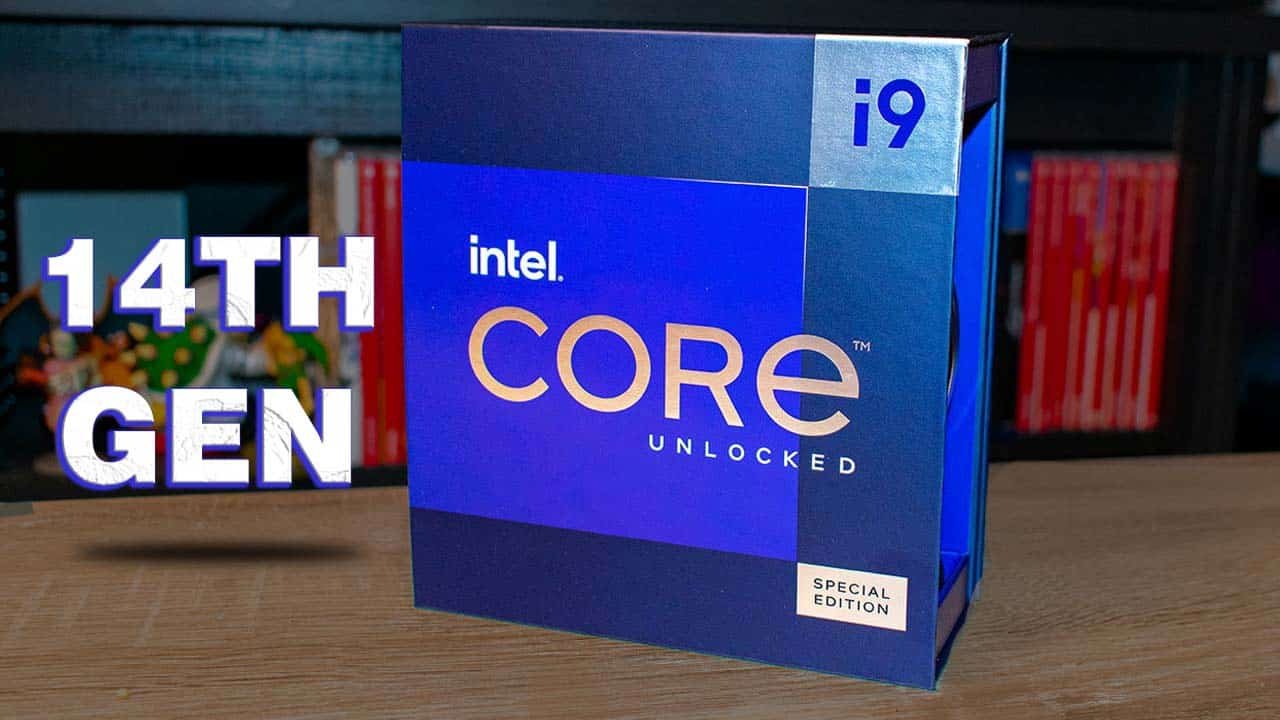
    Intel is gearing up for a significant announcement this year regarding its 14th-generation Core processors, the ‘Raptor Lake Refresh’ series. This follows the footsteps of last year’s Raptor Lake lineup. Over the past few months, several leaks have illuminated key details about these upcoming processors.

    The most recent information comes directly from MSI, a prominent Taiwanese motherboard manufacturer. Their leaked details confirm crucial aspects, including the names and core configurations of multiple chips within the forthcoming next-gen family.

    The source of this leaked information is an unlisted video posted by MSI on YouTube (via @DarkmontTech). Though the video has been made private since then, it initially revealed key insights about Intel’s upcoming CPU lineup.

    According to the video, the Raptor Lake Refresh series will utilise the Intel 7 (10nm) process node and offer support for higher DDR5 frequencies. Notably, these next-gen chips are projected to exhibit a mere 3 per cent increase in performance compared to their predecessors. For instance, the i7-14700K is anticipated to deliver an average performance improvement of up to 17 per cent in multi-threaded applications over the i7-13700K.

    This performance enhancement in the 14700K model can be attributed to the inclusion of four additional efficient cores in the new chip’s design. Reports suggest that this chip will sport 8 performance cores and 12 efficient cores, deviating from the 8P+8E configuration seen in the 13700K.

    On the other hand, the i5-14600K and the i9-14900K are expected to maintain the same core counts as their predecessors. The former is likely to continue with the 6P+8E configuration of the i5-13600K, while the latter is rumoured to retain 8 performance cores and 16 efficient cores, mirroring the i9-13900K.

    Earlier leaks have indicated that the new processors will adhere to the architectural framework of the Raptor Lake lineup. This means they will feature the same configuration of Raptor Cove P-Cores and Gracemont E-Cores as their predecessors. The manufacturing process will be based on the 10nm++ node, and at least one of the higher-tier chips is anticipated to achieve frequencies exceeding 6 GHz.

    However, this enhanced performance may come at the expense of higher power consumption, with top-tier Raptor Lake Refresh chips potentially reaching a TDP exceeding 300W. Fortunately, these chips will maintain compatibility with existing LGA 1700 and 1800 motherboards, enabling users to seamlessly upgrade their processors without necessitating an entire system overhaul.

  • 50 keyboard shortcuts every Windows user should know

    50 keyboard shortcuts every Windows user should know

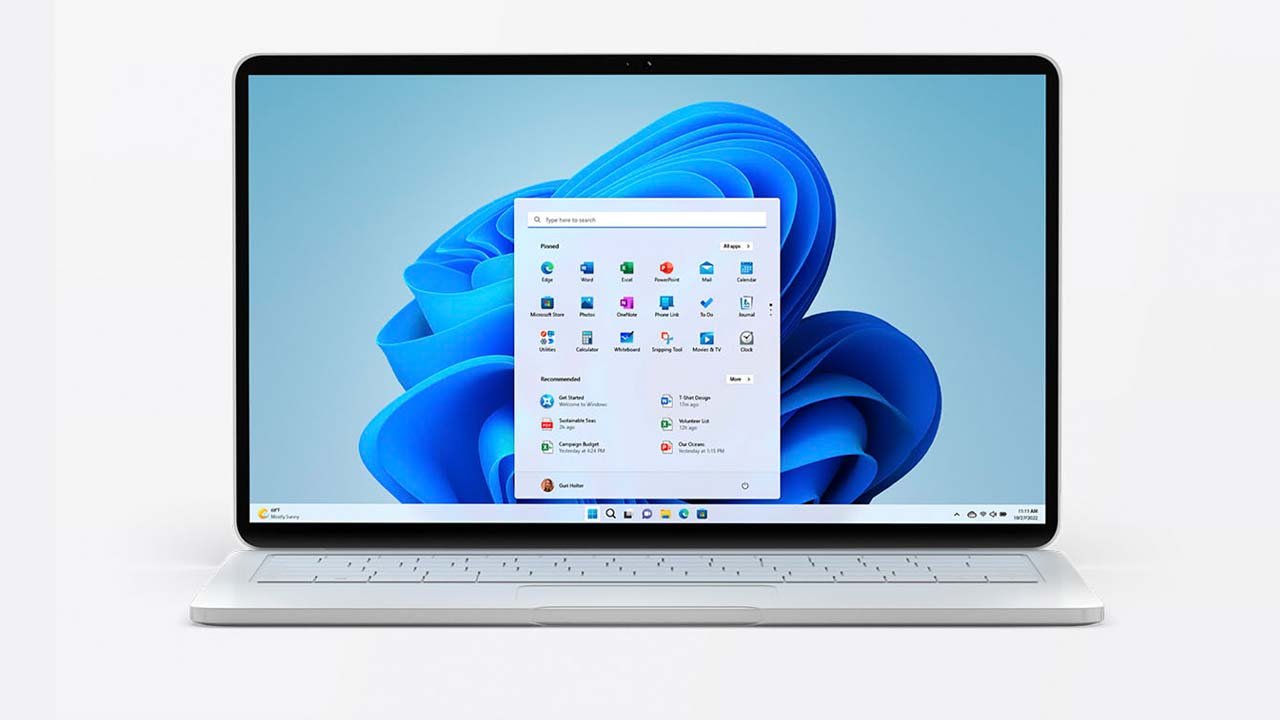
    Keyboard shortcuts can help you stay focused, lessen repeated effort, and greatly boost your productivity. For instance, you may select text and use the shortcut Ctrl+C to copy it. The shortcut is quicker than lifting your hands off the keyboard, using the mouse to highlight, right-clicking, choosing copy, and then putting them back on the keyboard.

    There are several keyboard shortcuts offered in Windows, but you do not need to master them all. Just the ones that will make your life simpler and increase productivity should be kept in mind.

    These are the major keyboard shortcuts that every Windows user needs to be familiar with:

    Keyboard shortcut Action
    Ctrl + A Select all content.
    Ctrl + C (or Ctrl + Insert) Copy selected items to clipboard.
    Ctrl + X Cut selected items to clipboard.
    Ctrl + V (or Shift + Insert) Paste content from clipboard.
    Ctrl + Z Undo an action, including undelete files (limited).
    Ctrl + Y Redo an action.
    Ctrl + Shift + N Create new folder on desktop or File Explorer.
    Alt + F4 Close active window. (If no active window is present, a shutdown box appears.)
    Ctrl + D (Del) Delete selected item to the Recycle Bin.
    Shift + Delete Delete the selected item permanently, skipping Recycle Bin.
    F2 Rename selected item.
    Esc Close current task.
    Alt + Tab Switch between open apps.
    PrtScn Take a screenshot and stores it in the clipboard.
    Windows key + I Open Settings app.
    Windows key + E Open File Explorer.
    Windows key + A Open Action center.
    Windows key + D Display and hide the desktop.
    Windows key + L Lock device.
    Windows key + V Open Clipboard bin.
    Windows key + Period (.) or Semicolon (;) Open emoji panel.
    Windows key + PrtScn Capture a full screenshot in the “Screenshots” folder.
    Windows key + Shift + S Capture part of the screen with Snip & Sketch.
    Windows key + Left arrow key Snap app or window left.
    Windows key + Right arrow key Snap app or window right.

    Desktop shortcuts

    On Windows, you can use these keyboard shortcuts to open, close, navigate, and perform tasks more quickly throughout the desktop experience, including the Start menu, Taskbar, Settings, and more.

    Keyboard shortcut Action
    Windows key (or Ctrl + Esc) Open Start menu.
    Ctrl + Arrow keys Change Start menu size.
    Ctrl + Shift + Esc Open Task Manager.
    Ctrl + Shift Switch keyboard layout.
    Alt + F4 Close active window. (If no active window is present, a shutdown box appears.)
    Ctrl + F5 (or Ctrl + R) Refresh current window.
    Ctrl + Alt + Tab View open apps.
    Ctrl + Arrow keys (to select) + Spacebar Select multiple items on desktop or File Explorer.
    Alt + Underlined letter Runs command for the underlined letter in apps.
    Alt + Tab Switch between open apps while pressing Tab multiple times.
    Alt + Left arrow key Go back.
    Alt + Right arrow key Go forward.
    Alt + Page Up Move up one screen.
    Alt + Page Down Move down one screen.
    Alt + Esc Cycle through open windows.
    Alt + Spacebar Open context menu for the active window.
    Alt + F8 Reveals typed password in Sign-in screen.
    Shift + Click app button Open another instance of an app from the Taskbar.
    Ctrl + Shift + Click app button Run app as administrator from the Taskbar.
    Shift + Right-click app button Show window menu for the app from the Taskbar.
    Ctrl + Click a grouped app button Cycle through windows in the group from the Taskbar.
    Shift + Right-click grouped app button Show window menu for the group from the Taskbar.
    Ctrl + Left arrow key Move the cursor to the beginning of the previous word.
    Ctrl + Right arrow key Move the cursor to the beginning of the next word.
    Ctrl + Up arrow key Move the cursor to the beginning of the previous paragraph
    Ctrl + Down arrow key Move the cursor to the beginning of the next paragraph.
    Ctrl + Shift + Arrow key Select block of text.
    Ctrl + Spacebar Enable or disable Chinese IME.
    Shift + F10 Open context menu for selected item.
    F10 Enable app menu bar.
    Shift + Arrow keys Select multiple items.
    Windows key + X Open Quick Link menu.
    Windows key + Number (0-9) Open the app in number position from the Taskbar.
    Windows key + T Cycle through apps in the Taskbar.
    Windows key + Alt + Number (0-9) Open Jump List of the app in number position from the Taskbar.
    Windows key + D Display and hide the desktop.
    Windows key + M Minimize all windows.
    Windows key + Shift + M Restore minimized windows on the desktop.
    Windows key + Home Minimize or maximize all but the active desktop window.
    Windows key + Shift + Up arrow key Stretch desktop window to the top and bottom of the screen.
    Windows key + Shift + Down arrow key Maximize or minimize active desktop windows vertically while maintaining width.
    Windows key + Shift + Left arrow key Move active window to monitor on the left.
    Windows key + Shift + Right arrow key Move active window to monitor on the right.
    Windows key + Left arrow key Snap app or window left.
    Windows key + Right arrow key Snap app or window right.
    Windows key + S (or Q) Open Search.
    Windows key + Alt + D Open date and time in the Taskbar.
    Windows key + Tab Open Task View.
    Windows key + Ctrl + D Create new virtual desktop.
    Windows key + Ctrl + F4 Close active virtual desktop.
    Windows key + Ctrl + Right arrow Switch to the virtual desktop on the right.
    Windows key + Ctrl + Left arrow Switch to the virtual desktop on the left.
    Windows key + P Open Project settings.
    Windows key + A Open Action center.
    Windows key + I Open Settings app.
    Backspace Return to the Settings app home page.
  • Xiaomi launches 280,000 mAh power bank for outdoor use

    Xiaomi launches 280,000 mAh power bank for outdoor use

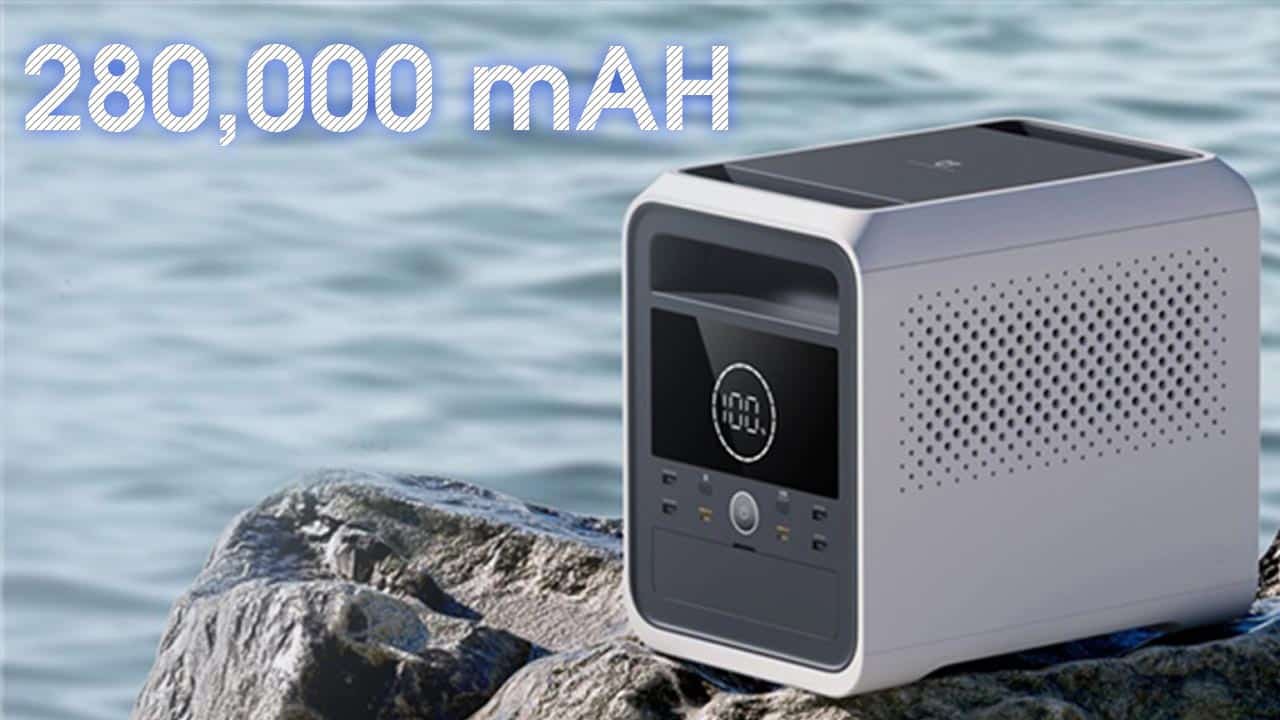
    The MIJIA Outdoor Power Supply 1000 Pro, a new outdoor power supply from Xiaomi, has been launched. This product will compete with outdoor power banks made by well-known companies like Anker and others.

    The “mixed solid-liquid electrolyte lithium battery” used by the MIJIA Outdoor Power Supply 1000 Pro has passed the acupuncture test. The internal battery pack may be recharged 1,000 times and complies with IP67 protection standards.

    With an ultra-high output rating of 220V/1800W, the power supply’s built-in 280000mAh/1022Wh super-capacity battery can handle the majority of outdoor electrical appliances and everyday items.

    The MIJIA Outdoor Power Supply 1000 Pro is capable of charging drones (28Wh) approximately 32 times, laptops (70Wh) approximately 13 times, SLR cameras (15Wh) approximately 61 times, camp lights (10W) approximately 92 hours, and car refrigerators (60W) approximately 15.3 hours, among other devices.

    Using two-way inverter flash charging technology, the MIJIA 1000 Pro can recharge 100 per cent of its power in just 1.5 hours and 80 per cent in just 50 minutes.

    The pure sine wave bidirectional inverter, which may be used as a home backup energy storage device, has a similar interface to the household mains waveform and allows for simultaneous charging of up to 13 devices.

    Additionally, the MIJIA Outdoor Power Supply 1000 Pro offers parallel charging of two solar panels at the same time, with a maximum charging power of 200W MAX, and may be used in conjunction with the MIJIA Solar Panel 100W.

  • 5 best laptops to buy in 2022 for everyday use

    5 best laptops to buy in 2022 for everyday use

    The local market and online retailers both presently stock hundreds of laptops. Still, it can be difficult to find a new laptop that satisfies all of your needs.

    Before making a purchase, you must determine your requirements for your next laptop as well as how long you intend to use it.

    If you’re having trouble deciding which laptop best suits you, here are a few options available on the market:

    Apple MacBook Air

    Starting price: Rs289,000

    Everyone admires the graphics and functionality of MacBooks. Apple uses a retina display with a high pixel density, which makes it impossible for our eyes to distinguish between individual coloured pixels and instead causes everything to appear super tidy. Most artists prefer MacBook machines for just this reason, and the speedier M2 chip in the 2022 versions only makes it the best deal.

    The suggestion for keeping the weight in your bag low is the 13.6-inch MacBook Air, which comes in a stylish dark hue of space grey. Heavy-duty editing software is easily handled by an 8GB RAM, 8-core graphics processing unit. Apple claims that the battery life on a typical day will last up to 18 hours. However, with only two Thunderbolt ports (that handle up to 6K screens) and a headphone jack, be prepared for constrained connectivity.

    HP Envy X360 Convertible

    Starting price: Rs220,000

    The HP Envy x360 is the ideal laptop for students since it is tiny, incredibly light (1.30kg), and features a sturdy aluminium chassis. With the addition of an HP Pen for note-taking, this two-in-one gadget may be converted into a tablet at any time by rotating 360 degrees on its hinges. The 13.3-inch FHD display with micro-edge bezels strikes the ideal portability balance between a large laptop and a notebook.

    Enjoy the 11th Generation Intel Core i5 processor’s speeds, no-lag multitasking with 8GB of RAM, and 256GB of SSD storage space thanks to the system’s performance specifications. You can make your own study bubble in the library using additional cool features like the button-triggered privacy screen mode, mic mute, and camera shutter. Additionally, it has a wide range of connectivity choices, including a Thunderbolt 4 port and a microSD card reader, in addition to long battery life.

    Asus ROG Zephyrus G14

    Starting price: Rs300,000

    The best option for running heavy games and intensive CAD (computer-aided design) applications is a gaming laptop. The capable 16GB RAM and 1TB SSD storage of the ASUS ROG Zephyrus G14 are both supported by a potent NVIDIA GeForce RTX 3060 graphics card. Your rendering applications will therefore operate very quickly here.

    It can seem a little heavy to carry around since it is a gaming notebook, but that is to be expected from a machine with top-notch specifications. Using the integrated fingerprint reader, you can log in to your system instantly. You can also access independent HDMI and DisplayPort ports to view projects more clearly on a larger screen. The absence of a webcam is the sole negative aspect that some people might find unacceptable.

    Dell XPS 13 9305

    Starting price: Rs380,000

    The Dell XPS 13 Ultrabook, which maximises its 13.3-inch screen with almost no bezels, is another thin laptop to think about. Just know that, owing to 11th Gen Intel Core i5 CPUs, your study partner can manage all the demands of a hectic college student life. With 512GB SSD storage and 8GB of RAM, you can boot up and resume work in a flash, not to mention the fingerprint-integrated power button that grants you immediate access.

    Additionally, this model includes a 720p HD webcam. Even better, it includes two Thunderbolt 4 connections, each of which can accommodate up to two 4K displays. This is excellent for computing regular Word jobs and presentations.

    Lenovo Ideapad 5

    Starting price: Rs125,000

    Students looking for inexpensive solutions might look into Lenovo’s IdeaPad line. We chose the newest model, the IdeaPad 5, which is reasonably priced and boasts a massive 14-inch display and 16GB RAM. It is extremely quick for majors that require a lot of research because it is powered by an eight-core AMD Ryzen 7 CPU, which is compared to the more expensive Intel Core i7.

    Unless it recognises your distinct biometric signature on the power button, which grants access to only you and no one else, the laptop keeps sleeping. Long lectures won’t be a problem thanks to the all-day battery life; simply press the privacy shutter to permanently switch off the webcam. You can connect HDMI or DisplayPort cables to the device, or you can use the USB-C port with power supply to charge your smartphone.

    Note: Given that there are numerous models/variations, the price mentioned may differ slightly from market prices depending on the laptop’s specifications and features. Any product with a higher price may have modern hardware or improved specs as compared to stock/base variation.


  • Govt to distribute 100,000 laptops under Prime Minister’s Laptop Scheme

    Govt to distribute 100,000 laptops under Prime Minister’s Laptop Scheme

    About 100,000 students enrolled in government universities and colleges will soon receive free laptops as part of the Prime Minister’s Laptop Scheme, according to the Special Assistant to the Prime Minister (SAPM) for Youth Affairs, Shaza Fatima Khawaja.

    She said in a Monday interview with APP that the programme will only award young people with high-quality laptops based on their merit.

    “These laptops will be provided to all Ph.D. and postgraduate students, while the top performers in undergraduate programmes will also be included in the scheme,” she said.

    The SAPM claimed that the laptop program’s allotted quota for Balochistan students has been doubled, along with quotas for students who are disabled and 50 per cent of the program’s allotted quota for women. Prime Minister Skilled Programme will provide skills and information technology training to up to 100,000 youth.

    She claimed that the Pakistan Muslim League (N) government launched the Prime Minister Youth Program in 2013, which had six steps for empowering youth.

    Khawaja rejected the impression of closing the Prime Minister Youth Loan Scheme terming it wrong, and added, the restructuring of this program has been done under which the loan limit has been revised.

    “Now the youth will be provided interest-free loans up to Rs500,000, while loans from Rs500,000 to Rs7,500,000 will be provided on easy terms,” she told APP.

    She emphasised the urgent need to provide these youth with skills education in line with market needs by stating that 20 lakh graduates enter the market each year after completing their education.

  • Here’s how to build your new laptop without going to a shop

    Here’s how to build your new laptop without going to a shop

    As online purchasing and selling have evolved, you can now choose and order a laptop from a number of Pakistani websites without going to the market in person.

    Some of the most popular websites for online shopping include Daraz, laptopmart.pk, myshop.pk, mrlaptop.pk, telemart.pk and OLX.

    There is a distinct and significantly more effective website that delivers much more than just selling factory goods. The laptop shopping website paklap.pk offers a variety of brands from which you can choose one of your preferred models. Whatever brand or model you’re looking for, Paklap has it, from boxy Lenovo Thinkpads to sleek Apple MacBooks.

    The platform’s most intriguing feature is that it even lets you select your preferred RAM, HDD storage, and SSD storage and provides a precise cost estimate for the laptop after your chosen upgrades. In addition to laptops, the website lists a wide range of computer accessories and numerous gadgets for online shoppers at affordable prices.

    Building your new laptop and obtaining an exact price quote while you’re still in bed seems like a brilliant idea, particularly for those who lack the time to go to the market, haggle, and inquire about the cost of each upgrade.

    Despite the minimal effort, you should still confirm or check the market prices of each item you intend to purchase.