Tag: Thinkbook

  • 5 best laptops to buy in 2022 for everyday use

    5 best laptops to buy in 2022 for everyday use

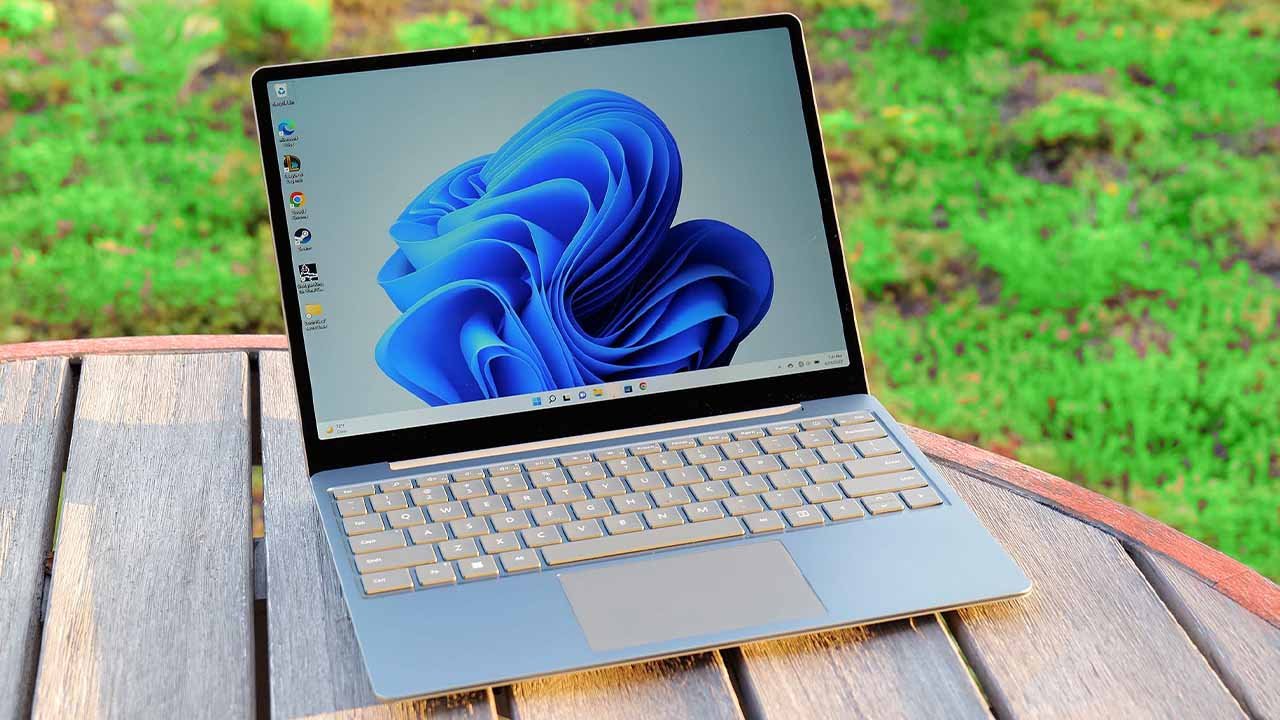
    The local market and online retailers both presently stock hundreds of laptops. Still, it can be difficult to find a new laptop that satisfies all of your needs.

    Before making a purchase, you must determine your requirements for your next laptop as well as how long you intend to use it.

    If you’re having trouble deciding which laptop best suits you, here are a few options available on the market:

    Apple MacBook Air

    Starting price: Rs289,000

    Everyone admires the graphics and functionality of MacBooks. Apple uses a retina display with a high pixel density, which makes it impossible for our eyes to distinguish between individual coloured pixels and instead causes everything to appear super tidy. Most artists prefer MacBook machines for just this reason, and the speedier M2 chip in the 2022 versions only makes it the best deal.

    The suggestion for keeping the weight in your bag low is the 13.6-inch MacBook Air, which comes in a stylish dark hue of space grey. Heavy-duty editing software is easily handled by an 8GB RAM, 8-core graphics processing unit. Apple claims that the battery life on a typical day will last up to 18 hours. However, with only two Thunderbolt ports (that handle up to 6K screens) and a headphone jack, be prepared for constrained connectivity.

    HP Envy X360 Convertible

    Starting price: Rs220,000

    The HP Envy x360 is the ideal laptop for students since it is tiny, incredibly light (1.30kg), and features a sturdy aluminium chassis. With the addition of an HP Pen for note-taking, this two-in-one gadget may be converted into a tablet at any time by rotating 360 degrees on its hinges. The 13.3-inch FHD display with micro-edge bezels strikes the ideal portability balance between a large laptop and a notebook.

    Enjoy the 11th Generation Intel Core i5 processor’s speeds, no-lag multitasking with 8GB of RAM, and 256GB of SSD storage space thanks to the system’s performance specifications. You can make your own study bubble in the library using additional cool features like the button-triggered privacy screen mode, mic mute, and camera shutter. Additionally, it has a wide range of connectivity choices, including a Thunderbolt 4 port and a microSD card reader, in addition to long battery life.

    Asus ROG Zephyrus G14

    Starting price: Rs300,000

    The best option for running heavy games and intensive CAD (computer-aided design) applications is a gaming laptop. The capable 16GB RAM and 1TB SSD storage of the ASUS ROG Zephyrus G14 are both supported by a potent NVIDIA GeForce RTX 3060 graphics card. Your rendering applications will therefore operate very quickly here.

    It can seem a little heavy to carry around since it is a gaming notebook, but that is to be expected from a machine with top-notch specifications. Using the integrated fingerprint reader, you can log in to your system instantly. You can also access independent HDMI and DisplayPort ports to view projects more clearly on a larger screen. The absence of a webcam is the sole negative aspect that some people might find unacceptable.

    Dell XPS 13 9305

    Starting price: Rs380,000

    The Dell XPS 13 Ultrabook, which maximises its 13.3-inch screen with almost no bezels, is another thin laptop to think about. Just know that, owing to 11th Gen Intel Core i5 CPUs, your study partner can manage all the demands of a hectic college student life. With 512GB SSD storage and 8GB of RAM, you can boot up and resume work in a flash, not to mention the fingerprint-integrated power button that grants you immediate access.

    Additionally, this model includes a 720p HD webcam. Even better, it includes two Thunderbolt 4 connections, each of which can accommodate up to two 4K displays. This is excellent for computing regular Word jobs and presentations.

    Lenovo Ideapad 5

    Starting price: Rs125,000

    Students looking for inexpensive solutions might look into Lenovo’s IdeaPad line. We chose the newest model, the IdeaPad 5, which is reasonably priced and boasts a massive 14-inch display and 16GB RAM. It is extremely quick for majors that require a lot of research because it is powered by an eight-core AMD Ryzen 7 CPU, which is compared to the more expensive Intel Core i7.

    Unless it recognises your distinct biometric signature on the power button, which grants access to only you and no one else, the laptop keeps sleeping. Long lectures won’t be a problem thanks to the all-day battery life; simply press the privacy shutter to permanently switch off the webcam. You can connect HDMI or DisplayPort cables to the device, or you can use the USB-C port with power supply to charge your smartphone.

    Note: Given that there are numerous models/variations, the price mentioned may differ slightly from market prices depending on the laptop’s specifications and features. Any product with a higher price may have modern hardware or improved specs as compared to stock/base variation.
  • PC running slow? Here are some easiest fixes

    PC running slow? Here are some easiest fixes

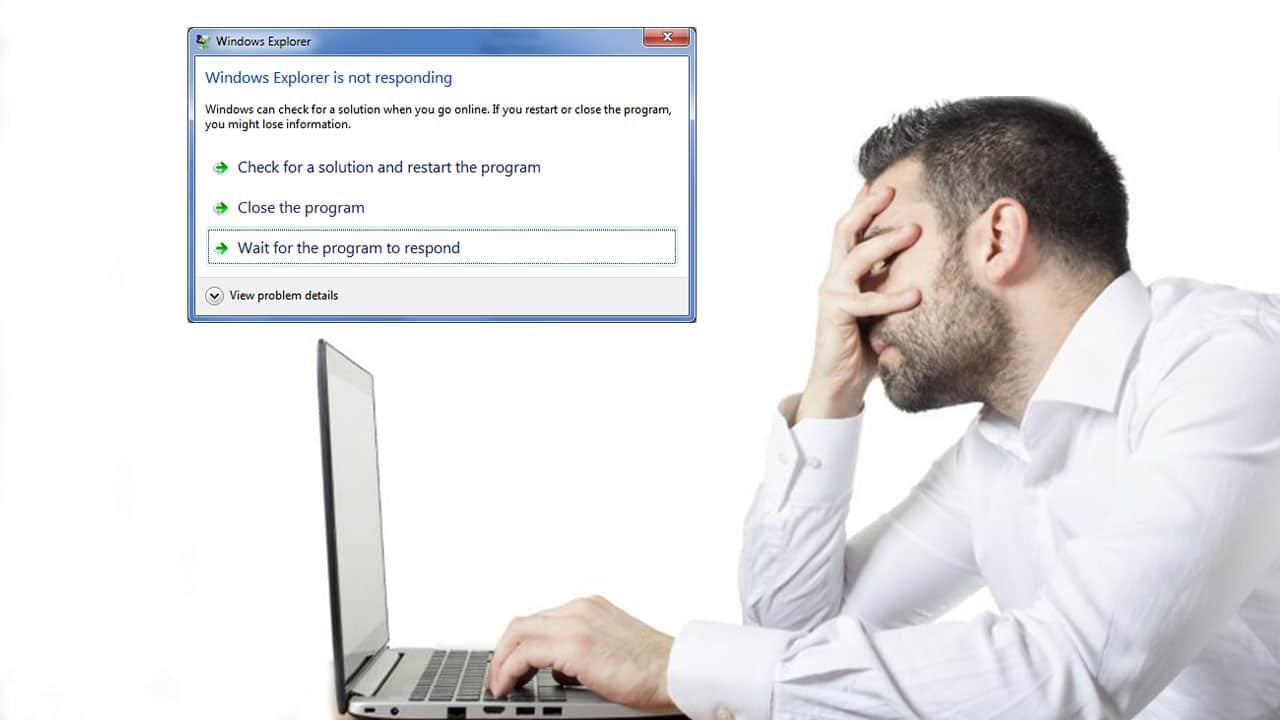
    A slow computer can make life much more difficult than it has to be, whether you’re using it for business or for entertainment. When you can hardly open a window, load a website, or even start up your system, slow performance speed can make your computer worthless.

    Spending a few minutes working through some tried-and-true troubleshooting procedures can make life easier if you’ve recently been experiencing issues.

    The following steps will help your PC perform smoothly:

    Delete unnecessary images or files.

    Sifting through the files and images on your computer might be overwhelming, but by deleting the ones you no longer use, you can speed up the process and prevent your computer from halting or crashing. Clearing out old images, erasing files on desktops, or moving huge files to online backup, are small and sensible methods to help your PC run quicker.

    If the process feels burdensome, break it down and take out 30 minutes each day to delete everything unnecessary. You may quickly identify any temporary files or apps sapping your PC’s storage.

    Get an external SSD/HDD

    If you take a lot of pictures, you might even want to think about external storage, like Portable SSD. It is ideal for safely saving a large number of your necessary high-resolution videos and photographs rapidly.

    Empty Recycle Bin

    Unwanted files will remain in the recycle bin after you have erased them because they are still there. You should routinely empty your recycle bin because it can be taking up space on your computer that could be better used elsewhere.

    The more capacity you have on your hard drive, the better your PC will perform. Your computer will also accumulate temporary files, but you may easily get rid of them. The steps are as follows for Windows 10 and 11:

    1. From the Start menu, select Settings
    2. Go to Storage
    3. Open ‘This PC’ and select the hard drive
    4. Click on Temporary Files
    5. Under Recycle Bin, click Empty Recycle Bin
    6. In Temporary Files, click Delete Temporary Files
    7. Under Downloads, select View Downloads and delete unwanted downloads

    Get more RAM

    You might need to add more RAM if your computer is displaying error warnings and files are taking a long time to load. Although this is distinct from the total amount of storage on your hard drive, adding more RAM will improve your computer’s multitasking abilities.

    Adding RAM can help if you frequently run many programmes at once (opens in a new tab). Installing at least 16GB and 32GB RAM from reputable manufacturers is a good idea. This will help in quicker startups, fewer delays, and smooth app switching.

    Install an anti-virus

    Malware infections can cause a computer to run slower than usual. Additionally, you can have unexpected pop-up warnings, a noisy computer, and erratically starting apps. However, the malware won’t always be so obvious.

    According to Microsoft, running anti-virus and anti-malware software and keeping it updated is the best way to deal with infections and harmful software. For instance, Windows 11 includes Windows Security, which will check your computer for viruses and other harmful software.

    Defragment disk

    In contrast to a solid state drive (SSD), a hard disc drive (HDD) stores data in discrete chunks across the disc. As a result of use and time, relevant data can become dispersed across the entire disc. When you start a software or app, the system then needs more time to locate each piece of data and put it back together for use. Your HDD’s defragmentation can expedite this procedure.

    Click the Windows button or Start menu, choose Control Panel, then System and Security to defragment your hard drive. Defragment your hard drive by selecting it under Administrative Tools.

    Since SSDs use a completely different technology than HDDs, they do not require defragmentation.

    Disable programs that auto-start

    On your computer, certain apps are configured to launch automatically when Windows does. Even though it’s not always simple to know which ones are active, having too many operate concurrently can cause delays.

    In order to prevent start-up apps from starting automatically, you must manually change the settings on your computer.

    Disable constant anti-virus checks

    You may have observed your system performing slowly when Task Manager was open, and that your antivirus programme frequently occupies a position towards the top of the list. While continually scanning your computer for viruses and malware, antivirus software can cause your system to sluggishly operate.

    Read more: 12 important things you need to know before buying a used iPhone

    Schedule your antivirus programme to run at times when you’re not likely to be using your computer, such as overnight or during your lunch break, rather than letting it scan whenever it pleases. Depending on the programme you use, you can modify the scan schedule.

    No matter what model or generation of PC you are using, by following these instructions you can significantly improve your PC’s performance. Unless you’re still on a Core 2 duo.

  • HP to launch its first 17-inch foldable OLED notebook

    HP to launch its first 17-inch foldable OLED notebook

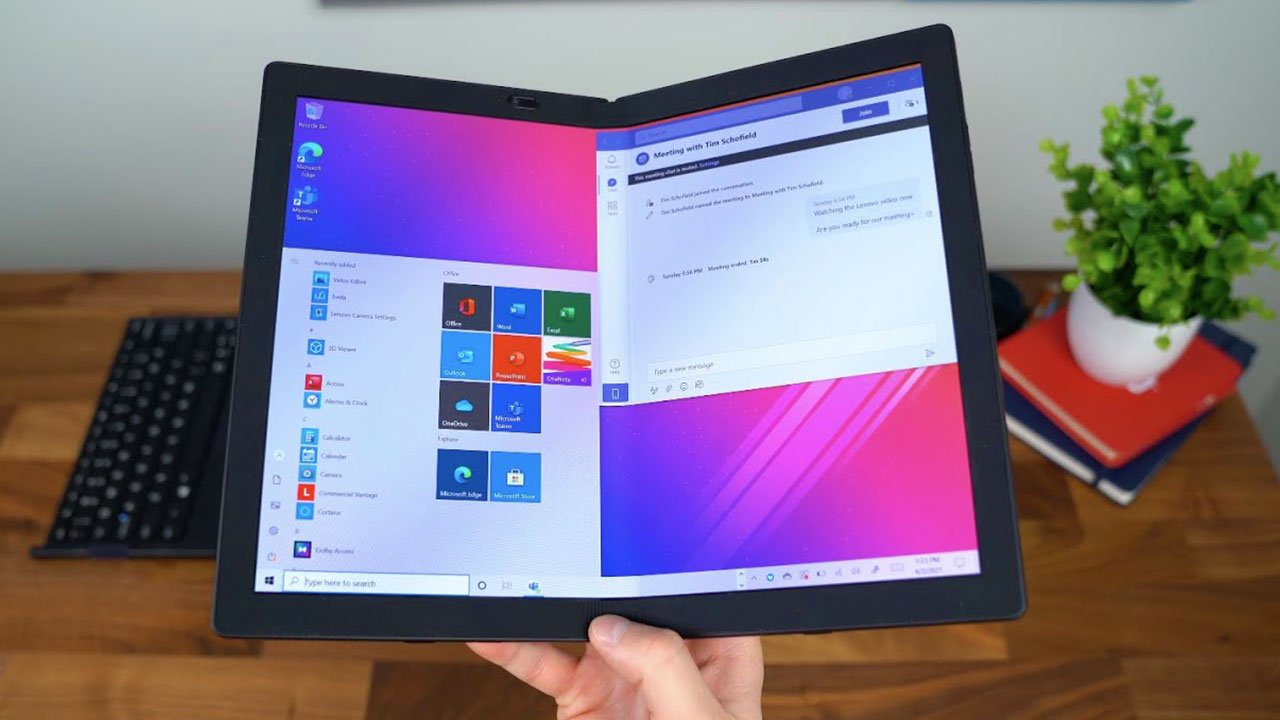
    Hewlett Packard Enterprises (HPE) is believed to be working on an all-screen foldable laptop with a 17-inch OLED panel that could be released in the coming months.

    HP’s bendable laptop may enter the next era of laptops, with LG Display releasing its vision of 17-inch folding OLED notebooks and Asus revealing its Zenbook 17 Fold OLED during CES 2022.

    SK IE Technology will provide LG Display with transparent polyimide film to cover bendable OLED panels. The OLED panels for HP’s new notebook will be made by the OLED provider. The company would produce 10,000 units of the film in the third quarter of this year, according to a publication.

    The laptop will reportedly have a 4K resolution (3840×2160) in-folding panel that measures 17 inches when unfolded and 11 inches when folded. That’s a major increase over the 13.3-inch Lenovo ThinkPad X1 Fold, which is the world’s first folding PC. According to the source, HP’s foldable laptop could debut in 2022.

    If HP wins in producing a notebook with a bendable 4K OLED display, the brand will join a multitude of other companies that are working on their own all-screen foldable laptop.

    Read more: Apple’s new iOS update to fix battery drain issues for iPhones, iPads

    The Asus Zenbook 17 Fold already has a 17.3-inch foldable OLED (FOLED) display with a 2560×1920 resolution, a 12th Gen Intel Core i7 CPU, and 16GB of LPDDR5 RAM, and a 1TB PCIe 4.0 SSD. A 12.5-inch variant is also available.